Salon Tablet or Phone Lost or Stolen? A Calm, Step-by-Step Data Security Checklist for Beauty Pros
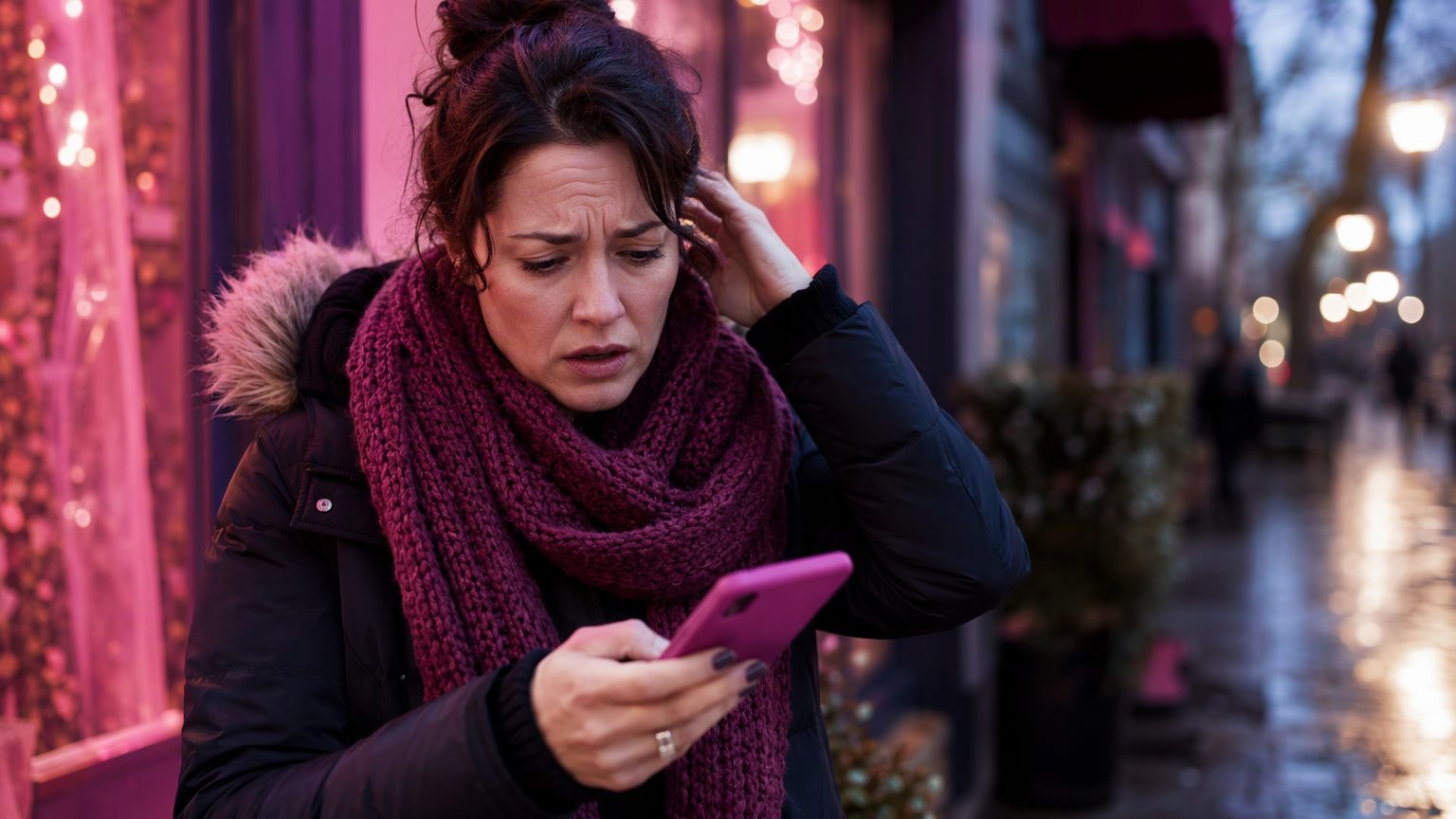
It's a packed Saturday before the holidays. It's been dark since 4:30, and at close you reach for the check-in tablet. It isn't on its stand. Or maybe your work phone is still at yesterday's holiday market stall.
That device may hold intake forms, signed consents, medical history notes, client photos, phone numbers and payment app logins. This salon data security checklist covers what to do in the first hour, the first day and the following week. It also shows you how to make the next loss a non-event. It's practical guidance, not legal advice. Take a breath. A clear sequence of steps limits the damage.
First 15 Minutes: Confirm It's Actually Lost
- Check the treatment rooms, the charging spot, under towels and capes, staff bags and your car.
- Call the phone, or play a sound through Find My (Apple) or Find My Device (Google).
- Check its last known location. If it shows a public place, don't go there to confront anyone. Note the location for the police report.
Stop after about 15 minutes. If it hasn't turned up, treat it as lost.
Lock It Down: Lost Mode and the Wipe Decision
Put the device into Lost Mode or remote lock right away. Show a "please call" message with the salon landline, not a personal number.
A remote wipe protects your data, but it usually ends tracking. Here's a rule of thumb:
- Wipe if the device was unlocked, had no passcode, or held client documents saved on it.
- Hold briefly and track only if it's clearly locked and recovery looks likely.
Remote wipe only works if it was turned on beforehand. More on that below.
Cut Off Access: Passwords and Sessions
Salon devices are usually signed into several accounts: booking software, intake forms, POS and payment apps, email, social DMs, cloud storage and messaging apps. Use a different, trusted device for these steps:
- Change your email password first. Email can reset everything else. Then change payments, then client-record systems.
- End active sessions. Use "sign out of all devices" wherever it's offered.
- Remove the lost device from trusted-device lists and two-factor methods. Reset any shared staff logins.
- Call your payment processor. Ask them to deactivate the device or card reader pairing, and ask about account protections.
Take Inventory: What Client Data Was on It?
Separate two kinds of data:
- Stored on the device: downloaded PDFs, camera-roll photos, screenshots of forms, notes and texts.
- Reached through logged-in apps.
Then ask the uncomfortable questions. Were before/after photos in the camera roll? Were consent forms saved as email attachments? Were client details texted from a personal number?
Note which clients may be affected. Also note whether a passcode, biometric lock and encryption were on.
Document Everything and File a Report
Start an incident log. Record the date, time, last known location, who had the device, and every step you take with the time.
Next:
- File a police report and keep the report number.
- Find the serial number and IMEI in your Apple or Google account, on the box or receipt, or through your carrier.
- Ask your carrier to suspend the line, blacklist the phone and block SIM-swap or call-forwarding misuse.
Do You Have to Tell Clients?
Each US state has its own data breach notification law. They differ on what counts as personal information and when notice is required. Some med spas and injector practices handle health information and may have extra obligations, depending on how they operate.
No single rule fits every business, so contact a qualified attorney, your insurer, or both, promptly. Whether the device was encrypted and locked often affects their analysis. The goal isn't panic. It's knowing who to call.
Talking to Clients With Care
If you're advised to notify clients, keep it honest, brief and human. Cover what happened, what information may be involved, what you've done and what clients can do. Avoid jargon and don't downplay it.
Give the front desk a short script for the holiday booking rush. Follow your advisor's guidance on timing and wording.
Check Your Insurance Coverage
Check your policy for two separate things:
- Property coverage for the device itself.
- Cyber or data breach coverage for response costs.
Call your agent early, because many policies have reporting deadlines. Have the incident log and police report ready. If you don't have cyber coverage, ask about it at year-end renewal.
Get Back to Work
For the rest of the week, you have a few options:
- Use a spare device.
- Use a staff member's device on a separate staff account.
- Send forms to clients' own phones before appointments.
Pre-visit forms take pressure off one front-desk tablet during the December rush.
When you set up the replacement, don't restore everything blindly. Add back only the apps and accounts it needs. Then debrief with staff calmly. Treat it as a process fix, not a blame session.
Prevention Checklist: Before the Holiday Rush
- Set a strong passcode and a short auto-lock on every device.
- Turn on Find My or Find My Device and remote wipe, then test them once.
- Confirm encryption is on. It's on by default on most modern devices with a passcode, but check.
- Give each staff member their own login, and remove access the day someone leaves.
- Turn on two-factor authentication for email, payments and client records.
- Keep client documents and photos out of camera rolls and downloads.
- Keep a device register: who has which device, serial numbers, and which accounts each one is logged into.
- Build dark-evening habits: nothing visible in a parked car, front desk locked at close.
- For pop-ups and bridal bookings, bring a locked device logged into only what you need that day.
- Schedule a quick device review as part of your January reset.
Why Where Your Records Live Matters Most
You can replace the device. The real risk is what's stored on it and who can still get in. You can't lock a paper binder remotely, and files saved on a tablet walk out with it. When forms, signatures and client records live in one organized account you can sign out of remotely, a lost device is far easier to contain.
No tool makes a business automatically compliant. Good habits and good advice still matter.
Quick-Reference Checklist
- First 15 minutes: search, call the device, check its location.
- First hour: lock it, decide whether to wipe, change your email password, sign out of all sessions.
- First day: change remaining passwords, call your processor and carrier, take a data inventory, start the incident log, file a police report.
- First week: contact your attorney and insurer, notify clients if advised, set up the replacement, debrief staff.
- Ongoing: review the prevention checklist every season.
Stay Calm, Stay Prepared
Act quickly, cut off access, document everything and get the right advice. Then fix your setup so it doesn't happen the same way again. Spend 20 minutes on the prevention checklist before December peaks.
If your intake still lives on paper or in files scattered across one device, try GlowForms. It keeps forms, signatures and client records organized in one searchable place, with a smooth mobile check-in for your clients.